Use a long passphrase
Choose four or more unrelated words. Aim for at least 15 characters when the service allows it.
Example format: River-Lemon-Window-Train

Websites • Software • Training • AI Solutions
Protect your email, banking, social media and shopping accounts with long, unique passphrases, a password manager and multi-factor authentication.
You do not need to be a computer expert. Start with your email, banking and social media accounts.
Choose four or more unrelated words. Aim for at least 15 characters when the service allows it.
Example format: River-Lemon-Window-Train
If one website is breached, a unique password prevents criminals from using it to access your other accounts.
Multi-factor authentication adds another check, such as an authenticator app, security key, code or device prompt.
A trusted password manager can create, store and fill strong unique passwords so you only need to remember one strong master passphrase.
Change the password from a trusted device. Sign out of other sessions, check recovery details and recent activity, then turn on MFA. If it is your email account, secure it first because email can be used to reset other passwords.
Change the affected password. If you reused it anywhere else, change those accounts too. Watch for phishing messages that refer to the breach.
Immediately change the password, review active sessions and contact the provider if needed. Never approve a login prompt you did not initiate and never share an MFA code.
Disconnect the affected device from the internet and have it checked. Change important passwords using a different, trusted device after confirming it is safe.
Remove their account where possible. If everyone used the same login, change the password and review recovery email addresses, phone numbers and authorised devices.
Use this video as an introduction, then follow the updated passphrase and MFA advice on this page.
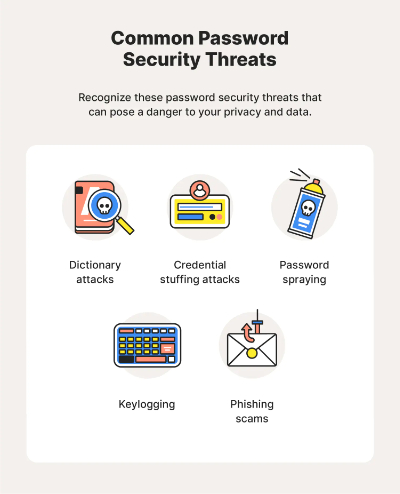
Work through the list one account at a time.
Read current advice about passphrases, password managers and protecting your accounts.
Visit cyber.gov.auTry the Australian Government's short scam awareness activity.
Take the scam quizStop using the affected device for banking or passwords. Disconnect it from the internet and contact Tweed IT for practical, plain-English assistance.